
How to access Wrenly in Slack
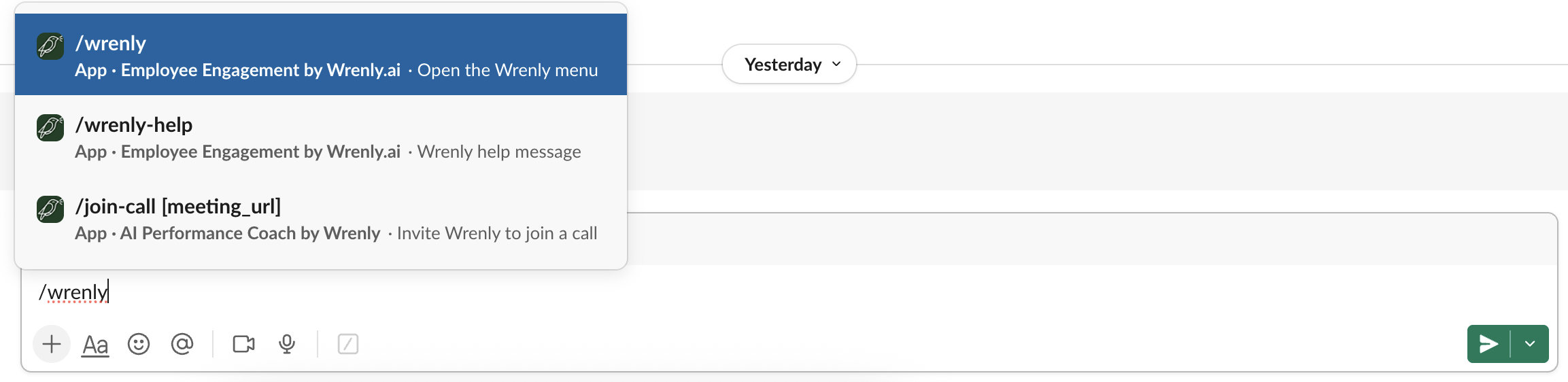
Wrenly integrates directly with Slack, allowing you to interact with many of its features without leaving your workspace. You can use the `/wrenly` command to open the Wrenly modal and access tools relevant to your role.
Steps to access Wrenly in Slack
1. Open Slack and go to any chat or channel where Wrenly is available
2. In the message box, type: /wrenly
3. Press Enter
This will open the Wrenly modal with a range of available actions based on your role
For Employees
Employees can access Wrenly features that help them share feedback, recognize peers, and track their progress directly from Slack.
Available Options
- Suggestion Box – Write and submit a suggestion or feedback directly from Slack.
- Peer Feedback – Send or request feedback from a peer.
- Peer Recognition – Send recognition to a colleague for their contributions.
- Answer Survey – Complete assigned surveys directly from Slack.
- My Goals – Opens the Wrenly web app where you can view your personal and team goals.
For Admins
Admins have access to additional management and setup options that help oversee engagement and organizational insights.
Available Options
- Create Survey – Opens the Wrenly web app to create a new survey.
- Open Dashboard – Opens the Wrenly web dashboard for deeper analytics and reports.
- Feedback Fridays – Manage setup, scheduling, and delivery of Feedback Friday sessions.
- Add Admins – Manage the list of Wrenly administrators.

Notes
- The options you see depend on your assigned role in Wrenly and on whether the module is enabled.
- All actions that require deeper setup or review will automatically open in the Wrenly web app.
- If the /wrenly command does not work, ensure that the Wrenly app has been installed and authorized in your Slack workspace.